
Import a preset into the Locker
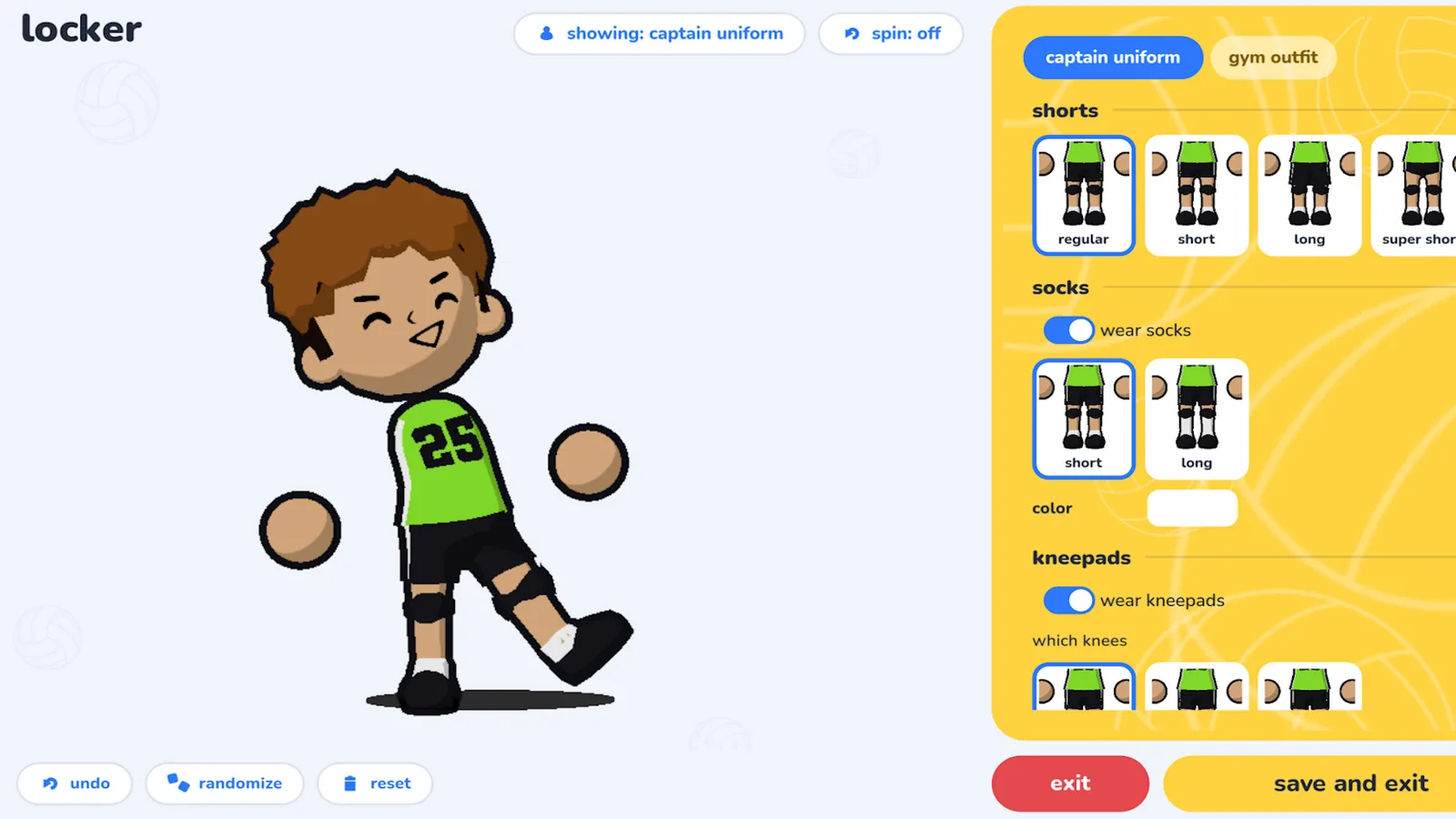
- Open Locker with the profile you want to customize. Save your current appearance in Presets so you have a clean way back.
- Choose a source below. Copy the complete code string from the original caption or description, including its prefix. Keep the creator’s label and any extra spaces out of the field.
- In Presets, use the import control shown by your build. Paste the code and confirm. Compare the preview to the creator’s example.
- Save the new look separately if you want to keep both. The Locker’s options cover appearance, including uniforms. The November release also added Photo Studio.

Find a code at its original source
| Appearance | Where to find the code | Version note |
|---|---|---|
| Optimus-inspired look | In the title of Le Diouk’s Steam screenshot | November community example begins with JV2: |
| Bokuto-inspired or Hoshiumi-inspired look | Open SQRL’s Bokuto or Hoshiumi tutorial and expand the description | Early creator examples begin with JV1: and may be incompatible with newer builds |
These are player-created looks. Steam documents avatar customization and supplies no named licensed roster in its feature list.
When a code does not load
Copy the full line again from the original source. A prefix alone does not describe an avatar, and switching prefix text will not convert the preset. If the same code fails in the current build, check the creator’s comments for a newer export or follow their visual tutorial and save your own preset. Use your saved look to back out of an unwanted change.
Sources & verification
- Official avatar customization 2026-11-19
- Developer Photo Studio announcement 2026-11-19
- Original community screenshot feed and JV2 example 2026-11-19
- October creator links and JV1 workflow 2026-11-19